
Earlier this afternoon I was perusing Twitter and noticed a few passing comments about a new MyMagic+ test next month, specifically for resort guests staying at the Animal Kingdom Lodge. Hey…that would be me! So I hopped on to the WDW website and discovered that Magic Bands are about to ship to my home. Who knew?! I then discovered that since I had linked my and CP’s annual pass vouchers to my account, I could now make FastPass+ reservations for our trip next month.
This process is all new to me and I figure it’s new to most if not all of you, too. So, in case it’s helpful, here’s a step-by-step look at the process. It’s picture heavy and long, but it should give you a sense of what the process will be like. I have a few comments/critiques at the end. I’d love to know what you think – is this the best thing to hit WDW since Dole Whips, or the end of What Walt Would Have Wanted(tm) as we know it?
The first thing you’re going to do is pull up the WDW website. You’ll see this menu bar on the top of your screen

Hover your mouse over the “MyDisneyExperience” tab and you’ll see this:
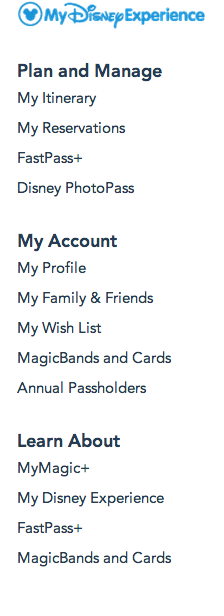 Note: my understanding (and someone please correct me if I’m wrong) is that you need to link your park tickets to your online account in order to partake in the FP+ planning process. If you click on the “Learn About: My Disney Experience” tab on the above menu, you’ll get instructions on how to link your tickets to your account.
To get started on all things MyMagic+ and FP+, you have two options: you can either click on “MagicBands” to customize your Bands and see where they will ship (if you plan a trip on short notice, they’ll send the Bands to your resort; if you plan ahead of time, they will come to your home address).That process is pretty straightforward, so we’re going to concentrate on the FastPass+ experience. From the above menu, click on “My Itinerary.”
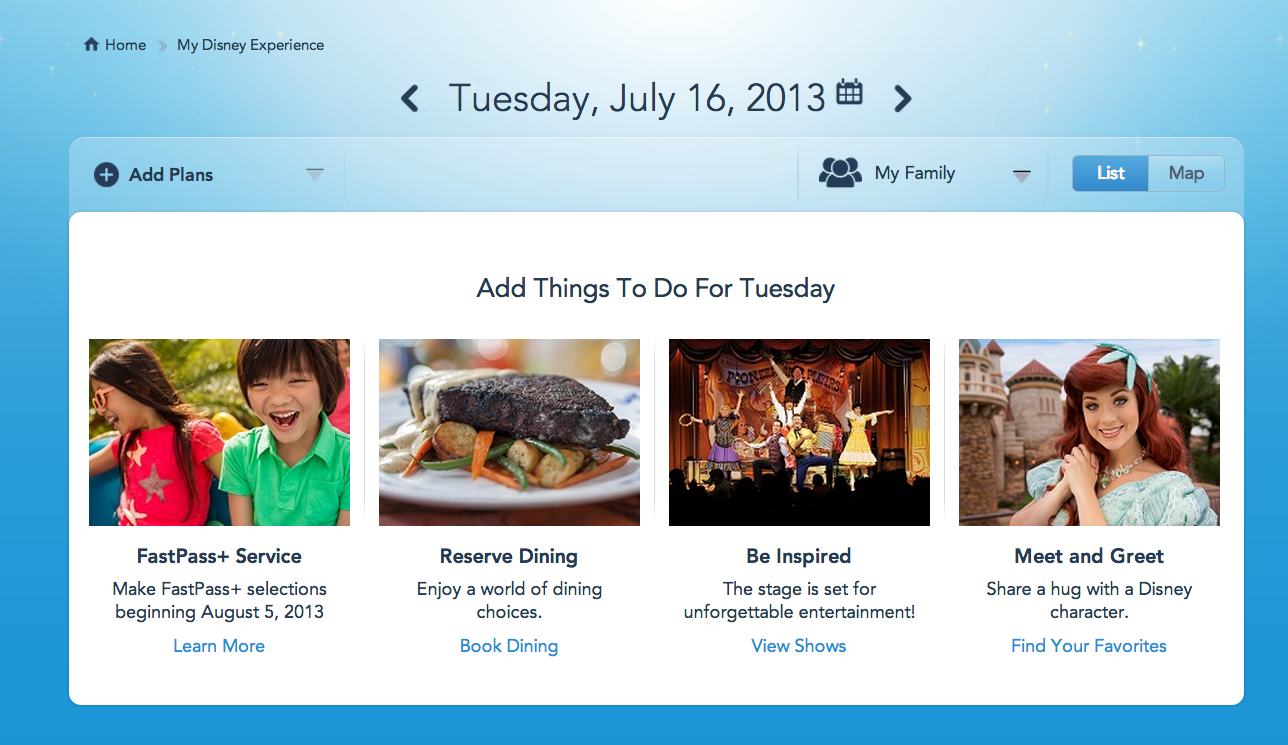 By default, clicking on “My Reservations” will bring you to today’s date – great if you’re currently at WDW, but not so helpful if you’re trying to plan from home. So, you want to click on the little calendar icon by today’s date:
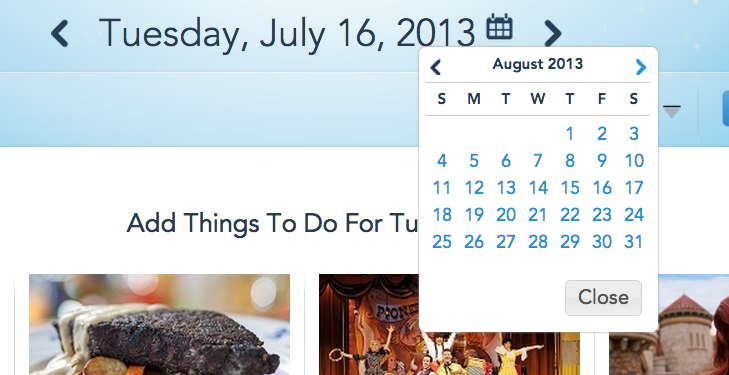
Click ahead to the first date you’ll be in the parks, and you’ll get something like this:
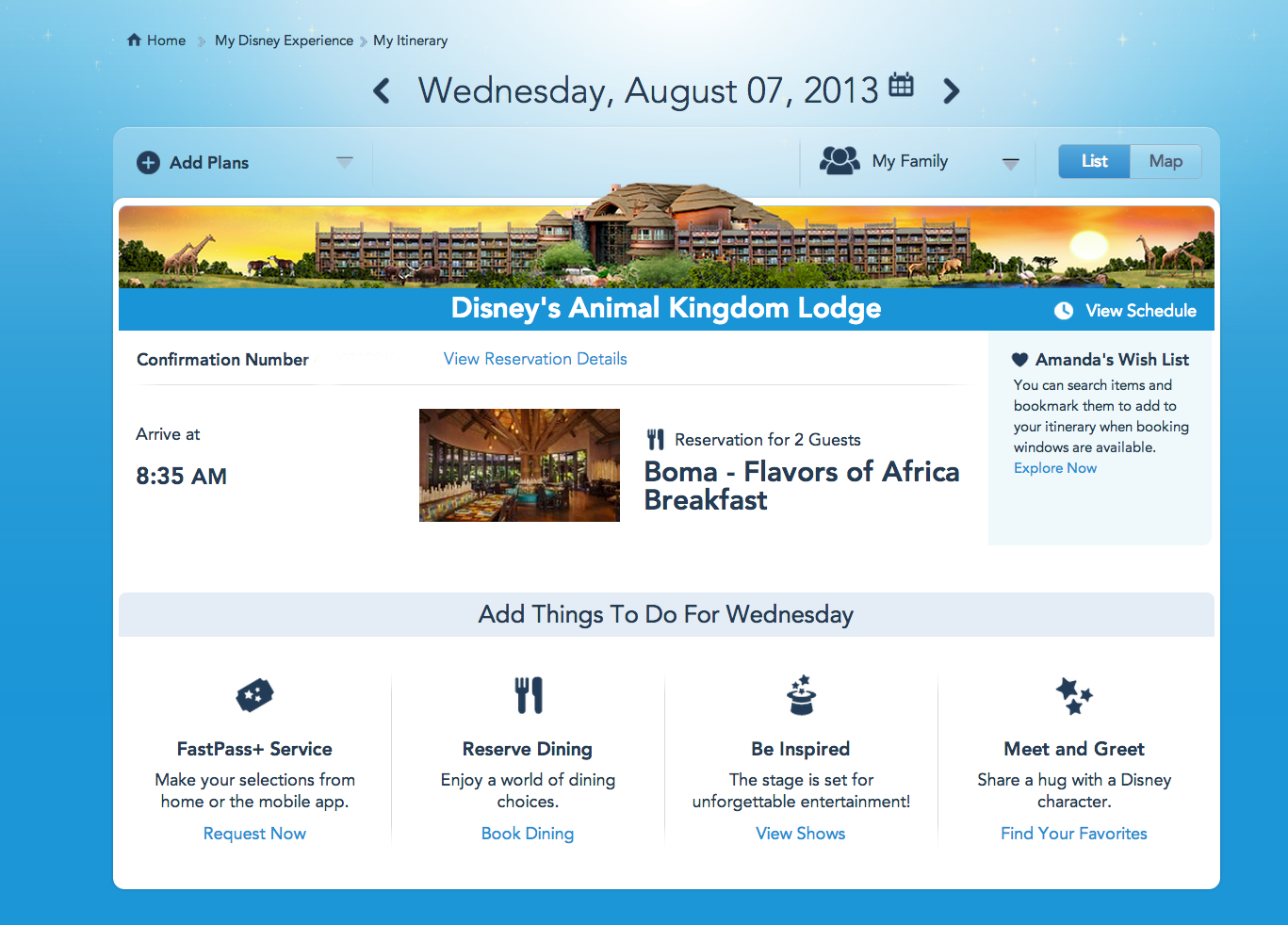
If you have existing dining reservations, you’ll see them here. That’s good – when you go to book your FastPass+ reservations, the system will automatically work around your dining reservations.
To start selecting your FP+ reservations, click on the “Request Now” link at the bottom left of your screen.
 Your next step is to select the members of your party for whom you’d like to reserve FastPasses. The two Ns in the above example are my grandparents – they’ve been on my dining reservations before, so that’s why they show up here. But you’ll notice it says they’re not eligible for MyMagic+; this is because there are no linked tickets for them. I can select for myself, and for CP, because we have our tickets linked up to the system. Go ahead and select your party; in my case, it’s CP and me.
You’ll next select the park for which you want FP+. Remember, you can only book FP+ for one park each day.
Note: Maybe this is a temporary glitch thing, but I’ve found it difficult to wholesale change from one park to another on a given day. So, for example, I just selected DHS as my park for August 5th. When I went to make changes to an individual FP+ reservation to try and change it to another park, I got nowhere. What I’ve found you need to do is go to your My Reservations page, scroll down to where it lists your FP+ selections by date, and then click on “update.” When you do this, you can then cancel a given day’s FP+ selections and start over. It’s not an intuitive process, though, so be forewarned.
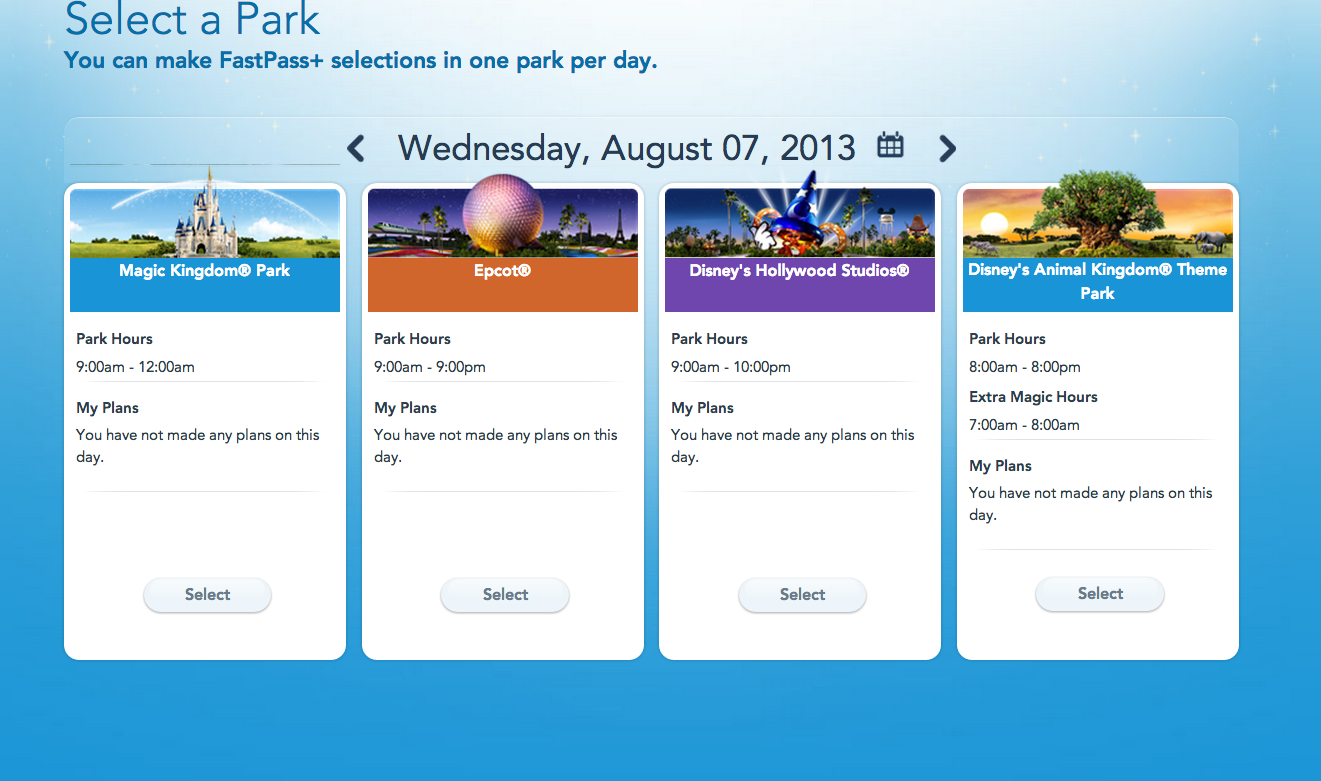 In this example, I’m going to choose Epcot.
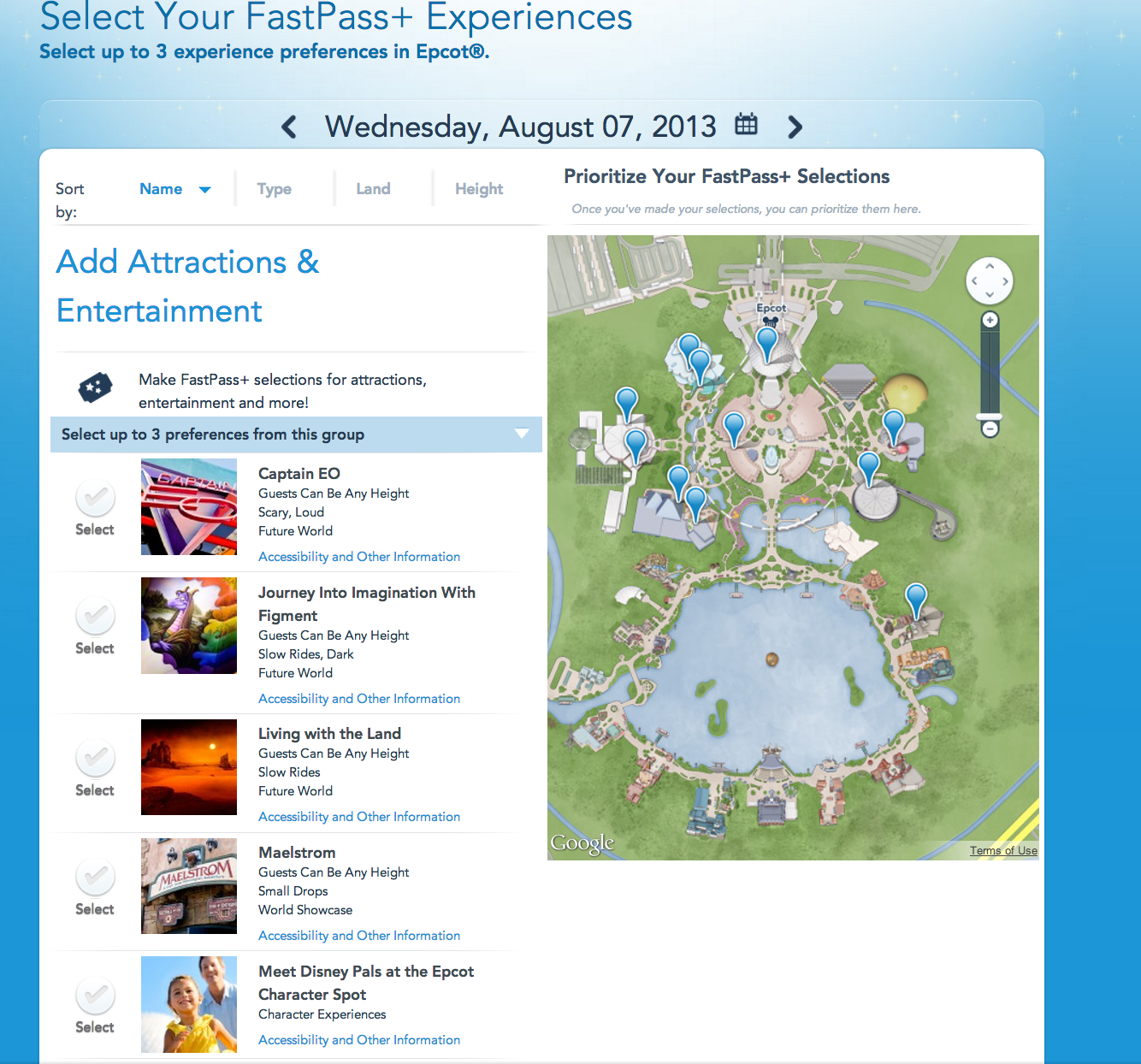

As you can see, a list appears from which you can choose three FP+ reservations. Remember, under the new system you are not only limited to one park per day, you are limited to three FP+ per person per day. So, make your choices wisely. Right now, it appears you can choose more than one “headliner” attraction – so, at Epcot I can choose Test Track and Soarin’ – but I’ve heard rumors this may or may not be the case going forward. If it is, you’ll want to pick them, as they see some of the highest standby waits in all of WDW. So, go ahead and pick (up to) three FP+ options.
Once you have your FP+ options selected, look up at the top of the screen. You’ll see a menu where you can rank your three choices from highest to lowest priority. Click the up and down arrows to order your choices accordingly. This will help the system pick the time and order of your FP+ reservations:
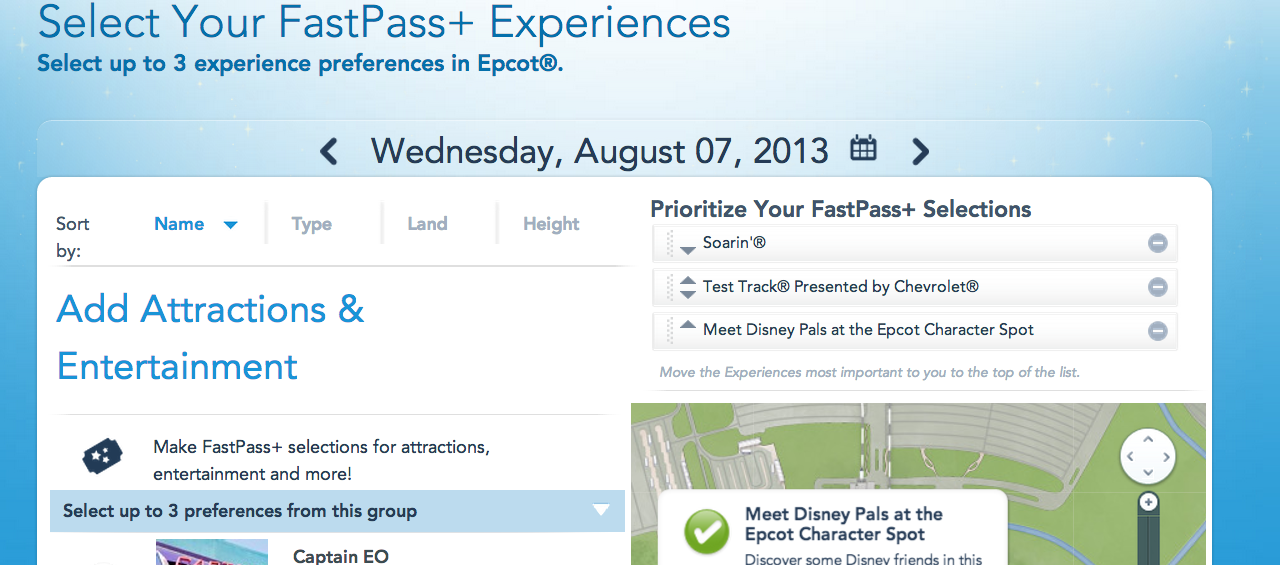
Once you’ve picked and ordered your selections, click the “next” buttom at the bottom right of your screen. We’ll now see what FP+ reservations the site has selected for us:
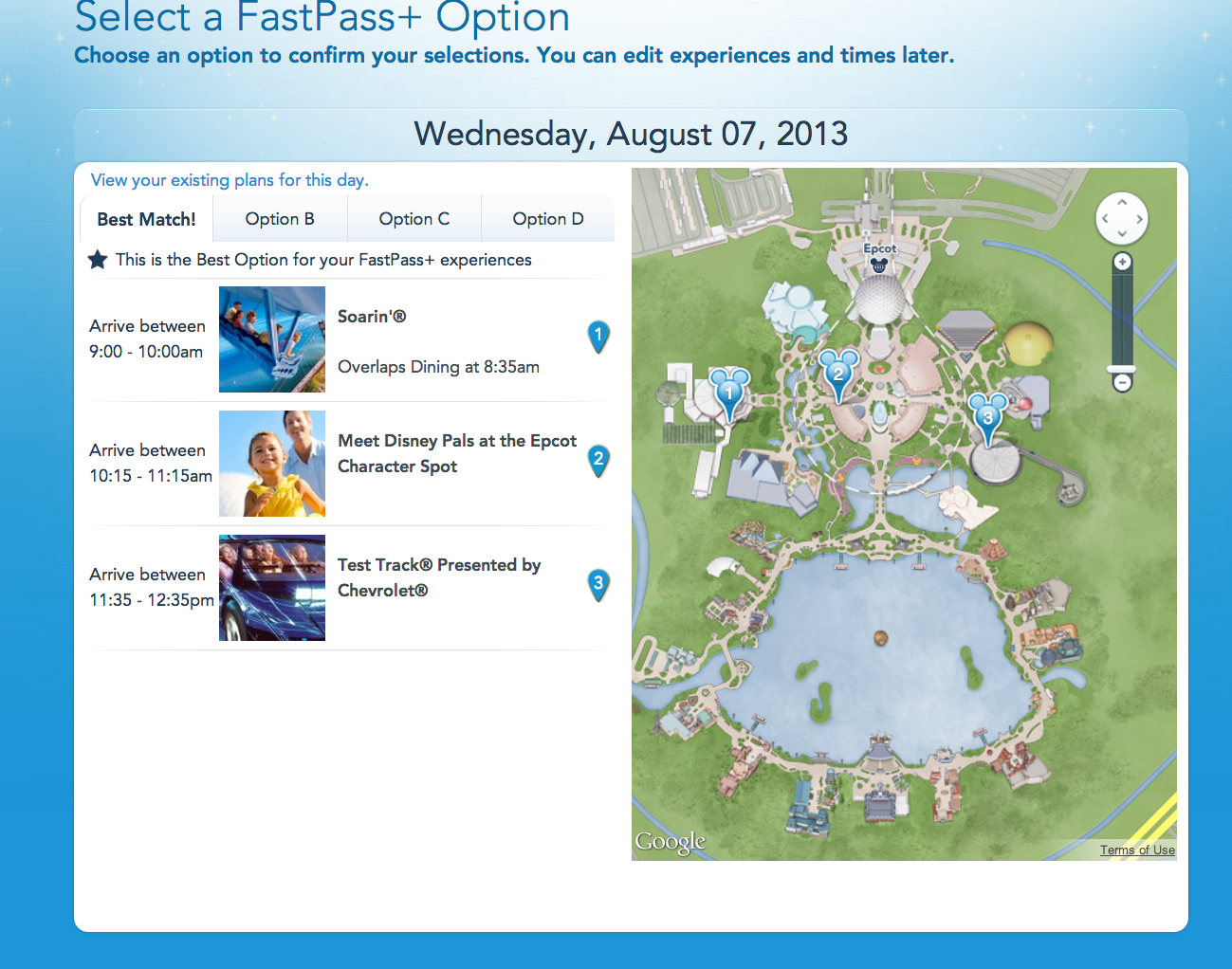 You’ll see that there are four tabs, one labeled “Best Match!” In my experience, the “Best Match!” option really is your best one – Disney is looking at your choices, your priorities, and your existing dining/other plans and comes up with what makes the most sense. If you don’t like the Best Match options, click through the other three tabs. If none of these look right, that’s okay – just pick one option and move on; you can make changes to individual FastPass+ reservations later. Note: if your top three choices aren’t available, the site may substitute in another option.
Once you’re happy, click on to the next screen, and you’ll get a confirmation message:
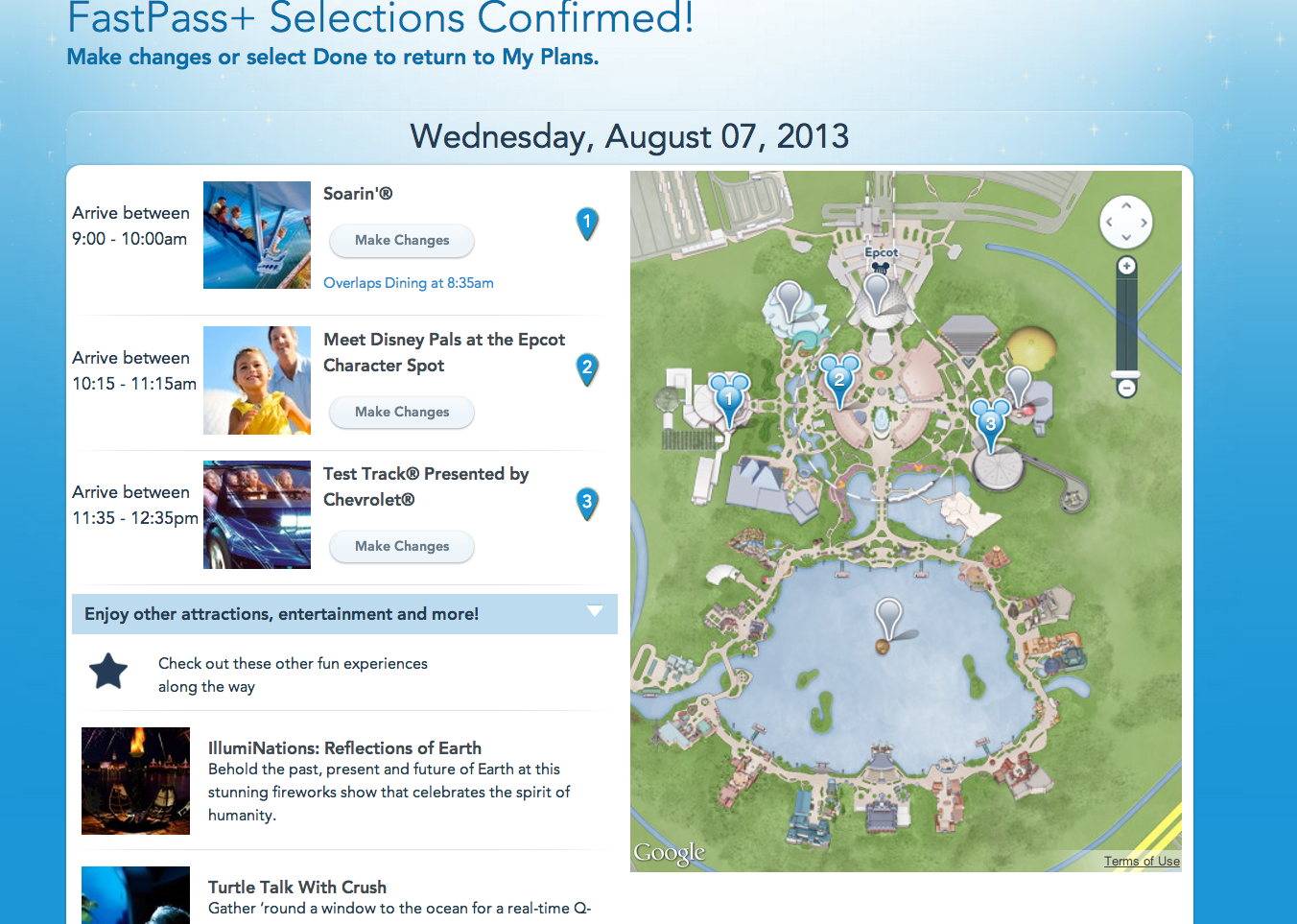
Now, let’s say you made a mistake in one of your choices, or you weren’t happy with the four tabs of pre-selected options. On the confirmation page, each FP+ reservation has a “Make Changes” button. Let’s hit that. (TWSS)
 Here you can change the time of your “experience,” the people participating (i.e. if CP wants to bail on Soarin’, I can change her FP+ without changing mine), or the experience itself. In this case, I just want to change the time for both of us, so I’ve made the above selections. Once you do that, click “next,” and you’ll find the screen where you’ll make your changes:
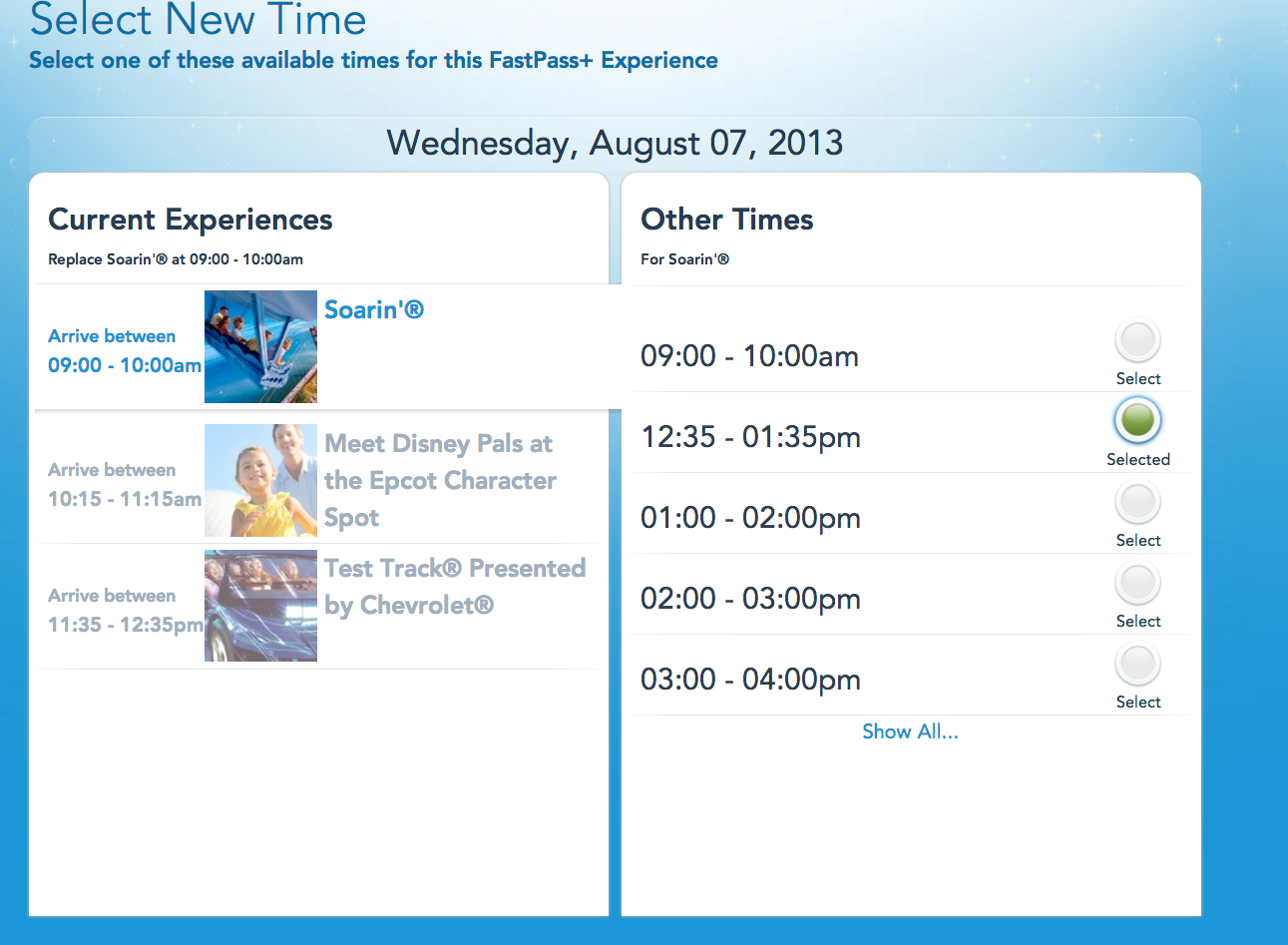
Since I don’t want to be at the park at the crack of dawn, I’m selecting a later time. Simple.
Once you’ve made your changes, click “next.” The next screen will confirm your changes, so if you made a mistake you can easily correct it:
 When you’re all set making changes, you’ll be taken back to your “My Itinerary” page, which will now have a complete list of all your selections for that day:
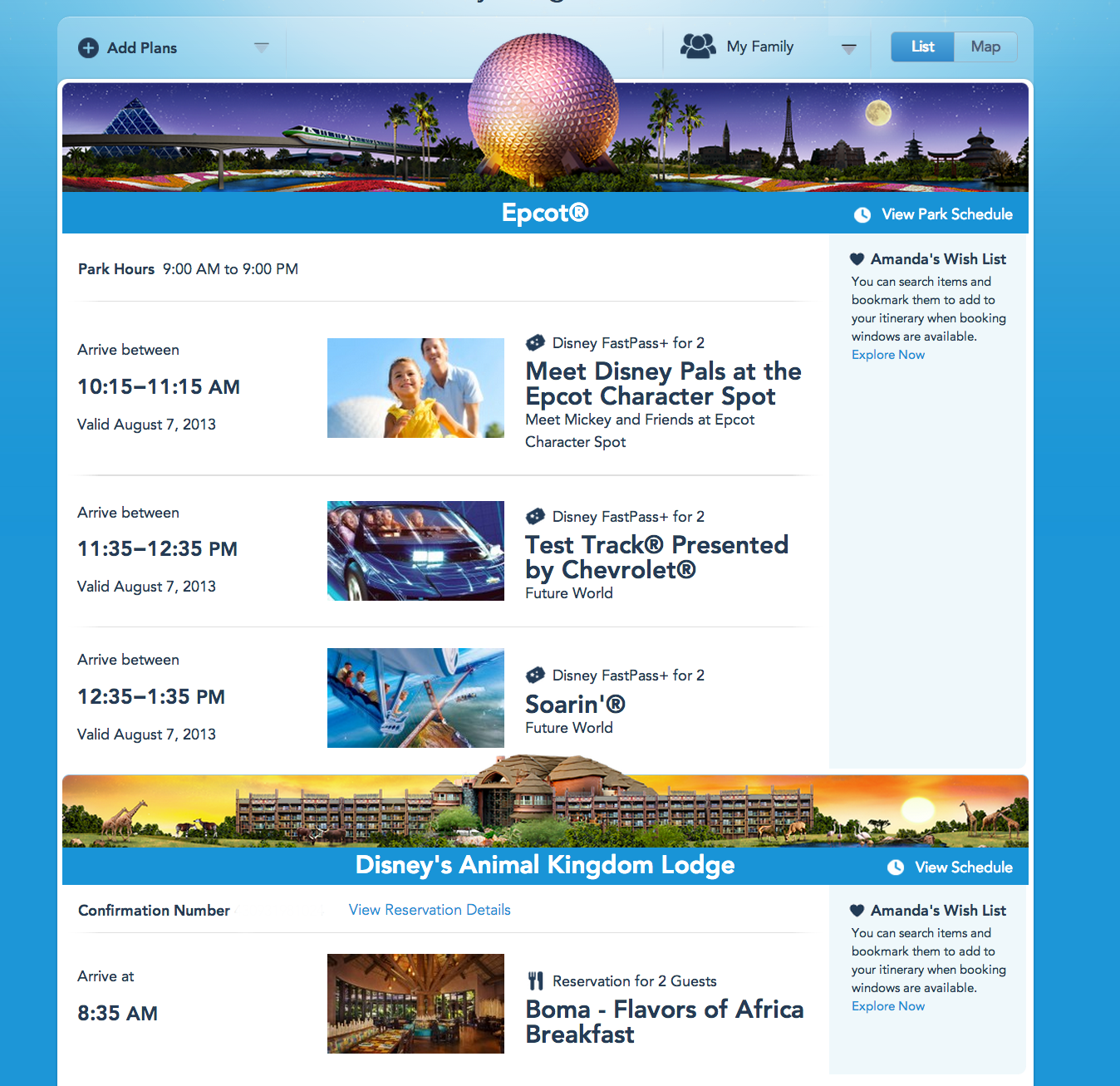 Lather, rinse, and repeat for each of your trip days.
So, now that I’ve used it, what do I think? Bearing in mind that I haven’t used it in the parks yet, I can only speak to the pre-trip experience. So far, the selecting, changing, and confirming of FP+ reservations was more pleasant than I had anticipated. I do also like that you can reserve fireworks viewing spots and character greetings, and I’m coming around to the idea of not having to participate in the mad dash for FastPasses. There is a certain civilizing element to this process.
That said, I’m not wild about being limited to one park per day. I’m a die-hard park hopper, and it’s frustrating to have to use three FP+ in a park when I’d really like to use just one. For example, I’d love to hit Toy Story Mania at DHS and then hop over to Epcot, where I would ideally use FP+ for Soarin’ and IllumiNations after dinner. Not happening. Frankly there aren’t three FP+ experiences I really care about at the Studios.
Secondly, this is a time-consuming process. I’m at home on a day off today, and it’s taken me almost two hours (admittedly with some of this writing thrown in) to consult my trip-planning spreadsheet, play around with which-park-on-which-day scenarios, and consider whether it’s worth rejiggering any of my dining plans. For the moment, this comes down to an almost militaristic planning strategy; while I love making spreadsheets, I don’t often stick to them. This really forces you to plan ahead and then stick to your plans. Sure, WDW says you can change FP+ on the fly, but I highly doubt there will be a robust selection of headlining attractions available for last-minute FP+ changes. Maybe in the end I’ll like this better than sprinting for FPs at 8:00 am, but right now I’m not sure.
Welcome to our brave new world. We’ll see what happens.
 Nerds in Wonderland
Thanks for posting such detailed explanations. Whether or not I end up liking this will depend on if it let’s me get FPs for 3 headliners like you were able to, or if I’m forced to blow one on Captain EO. I imagine mid-afternoon FPs for headliners will be the first to go.
Yeah, I’m with you – if you can’t park hop, then I hope they at least let you get more than one headliner in a park. If not, my feelings about FP+ – which are already kind of mixed – will probably plummet.
I’ve been so curious how this will work! I could not find anything on the Disney site, so thank you so much. I have a room only reservation for October, so my “Disney Experience” does not let me use Fastpass + yet. I kind of like the whole chess game aspect of the Fastpass sprint, so I am not sure if I will use it. BTW- love your trip reports!
Pingback: See you next week…. | Nerds in Wonderland